Meet the newest addition to ConnectyCube: a brand-new feature inside the ConnectyCube Admin Panel – the Chat App Builder. If you’ve ever wished for the fastest possible way to spin up a fully functional chat application without coding, configuring servers, or setting up SDKs – this release is for you.
With the new Chat App Builder you can now generate a fully hosted chat application in just three simple steps:
- Enter the domain where you want your chat app to be deployed
- Select the features you want to include
- Click Generate and your customized chat app is live
You’ll instantly receive a link to your deployed chat – ready to share with teammates, friends or anyone who needs quick and secure communication.
Why we built the Chat App Builder?
We know that many users want to:
-
test ConnectyCube capabilities instantly
-
run a chat experience without spending time on integration
-
let teammates try the chat before full development
-
quickly create a standalone chat space for internal or short-term use
-
demonstrate chat functionality to clients
Traditionally, this required setting up SDKs, configuring authentication, hosting files and connecting APIs.
Not anymore.
The Chat App Builder removes every barrier between an idea and a working chat app.
Now, anyone can launch a custom chat application in under a minute.
Chat App Builder is the fastest way to go from idea → working chat app.
How it works
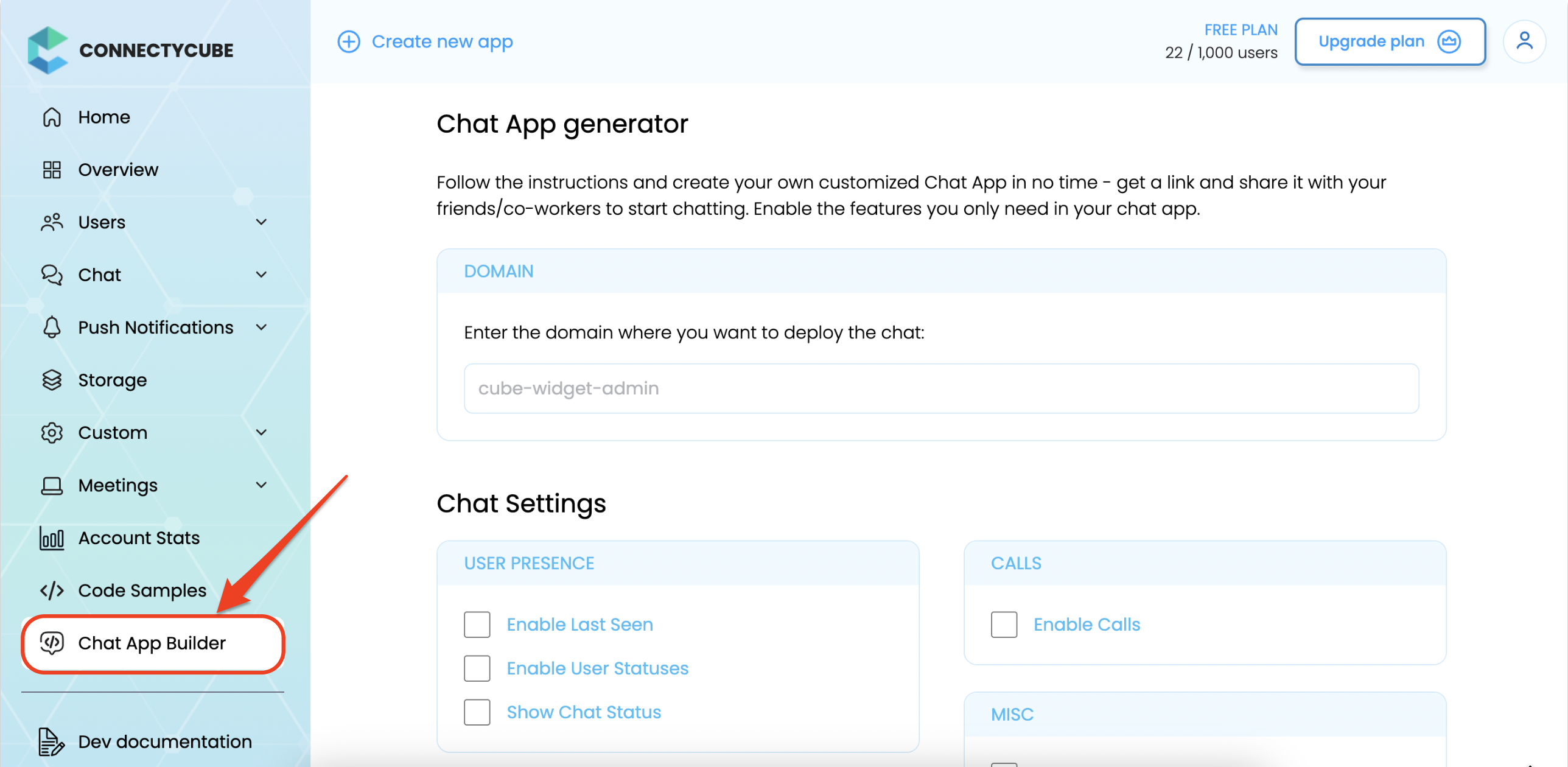
A new section, Chat App Builder, is now available in the Admin Panel menu. Simply open your app and select Chat App Builder from the left sidebar.
1. Enter your domain
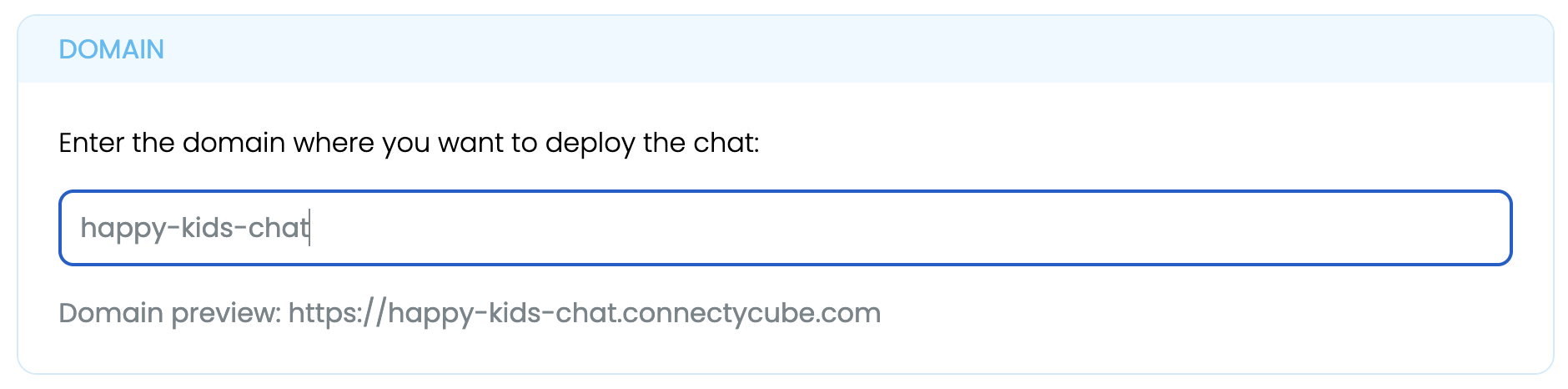
Type the website domain where you want the chat app to live. You will see the final url under the domain field.
This domain will be used to generate the final deployment link.
2. Choose Your Features
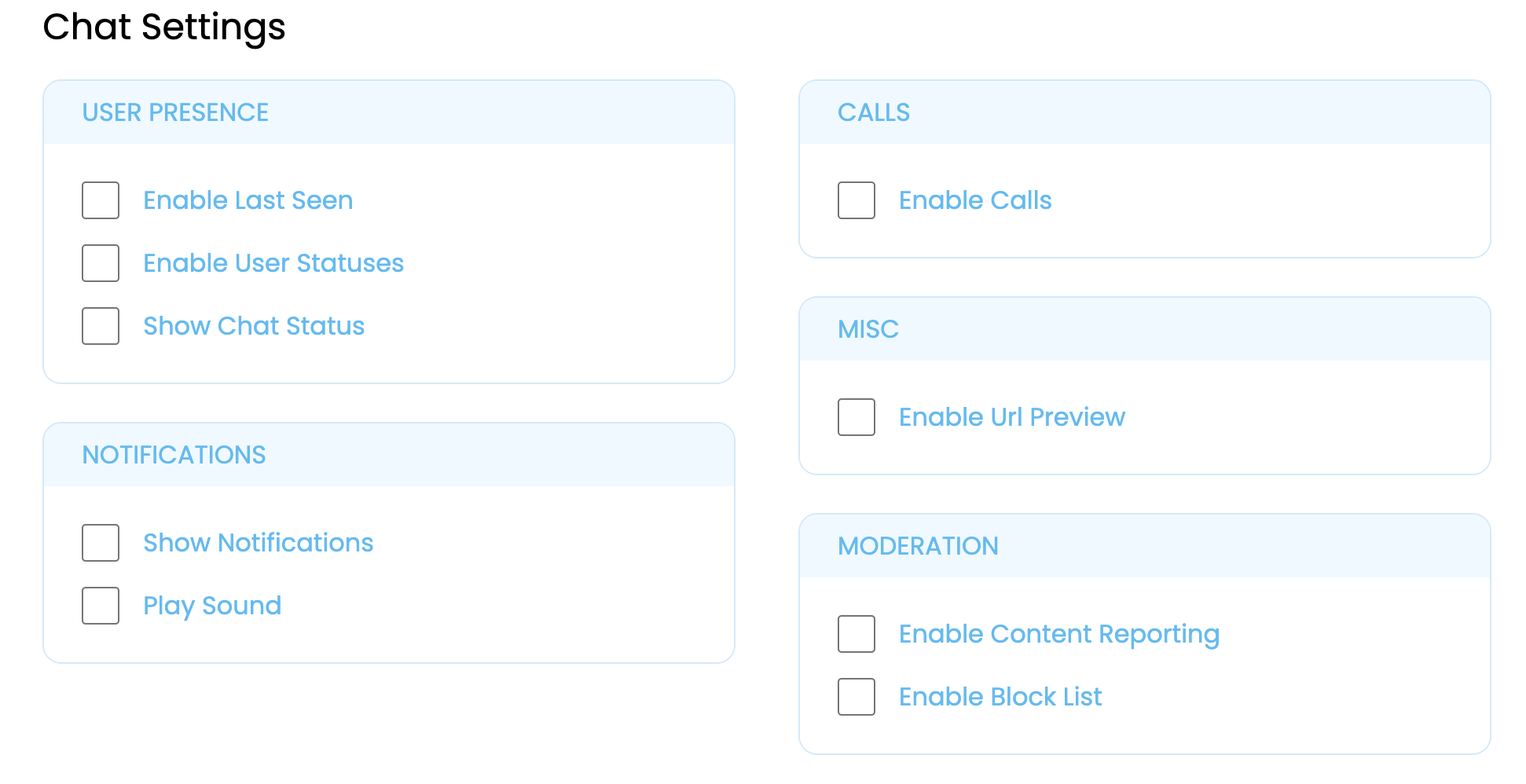
Customize your chat experience by selecting the features you want. Every option adjusts how your chat app will behave – giving you full control without touching code.
By default, all settings are un-ticked – user presence, voice/video calls, in-app notifications, moderation and misc.
3. Click “Generate”
Once your settings are selected, click Generate.
That’s it!
ConnectyCube automatically builds and deploys your chat application for you. You will see the progress bar with the deploying status:
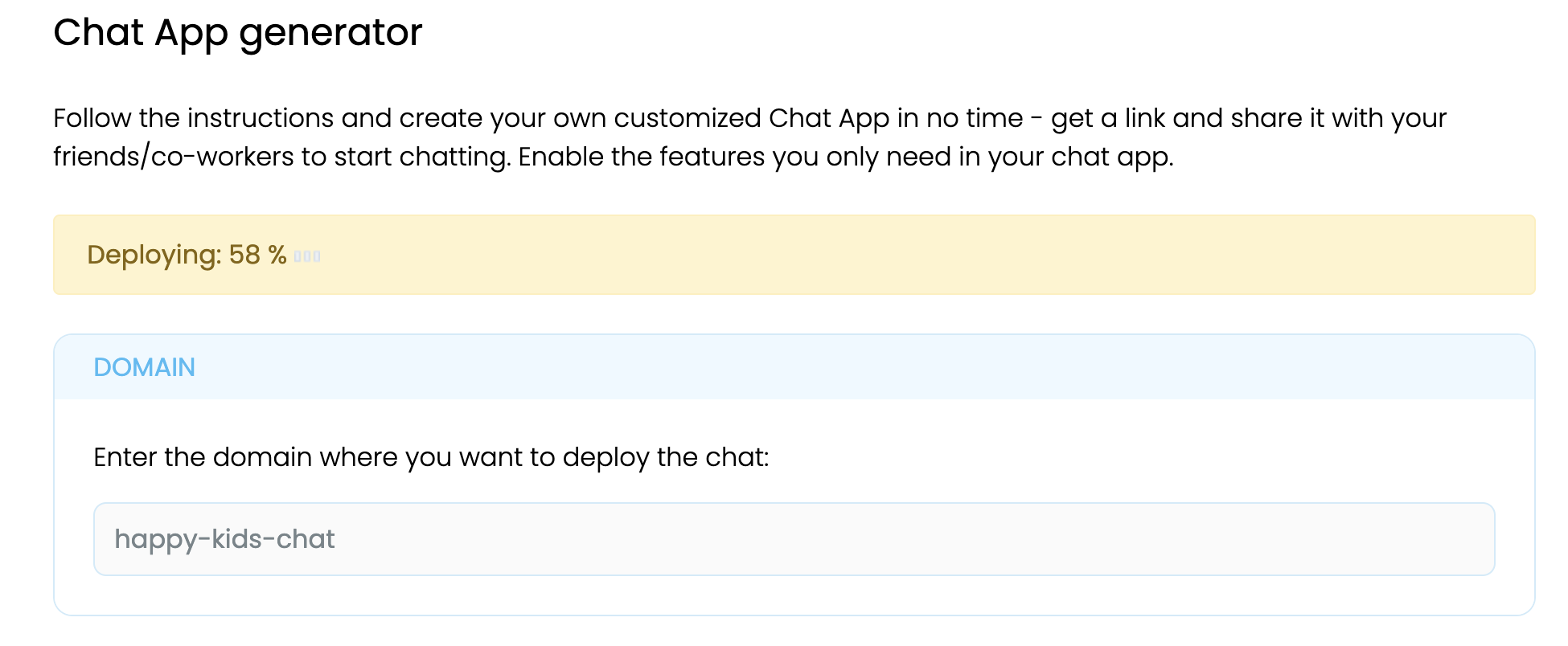
Final step – get your chat link
You’ll receive a ready-to-use link where your chat app is deployed.
Open it in your browser and start chatting or share it with your colleagues to join right away.
No manual installation.
No hosting setup.
No code.
Just a clean, modern chat app that works instantly.
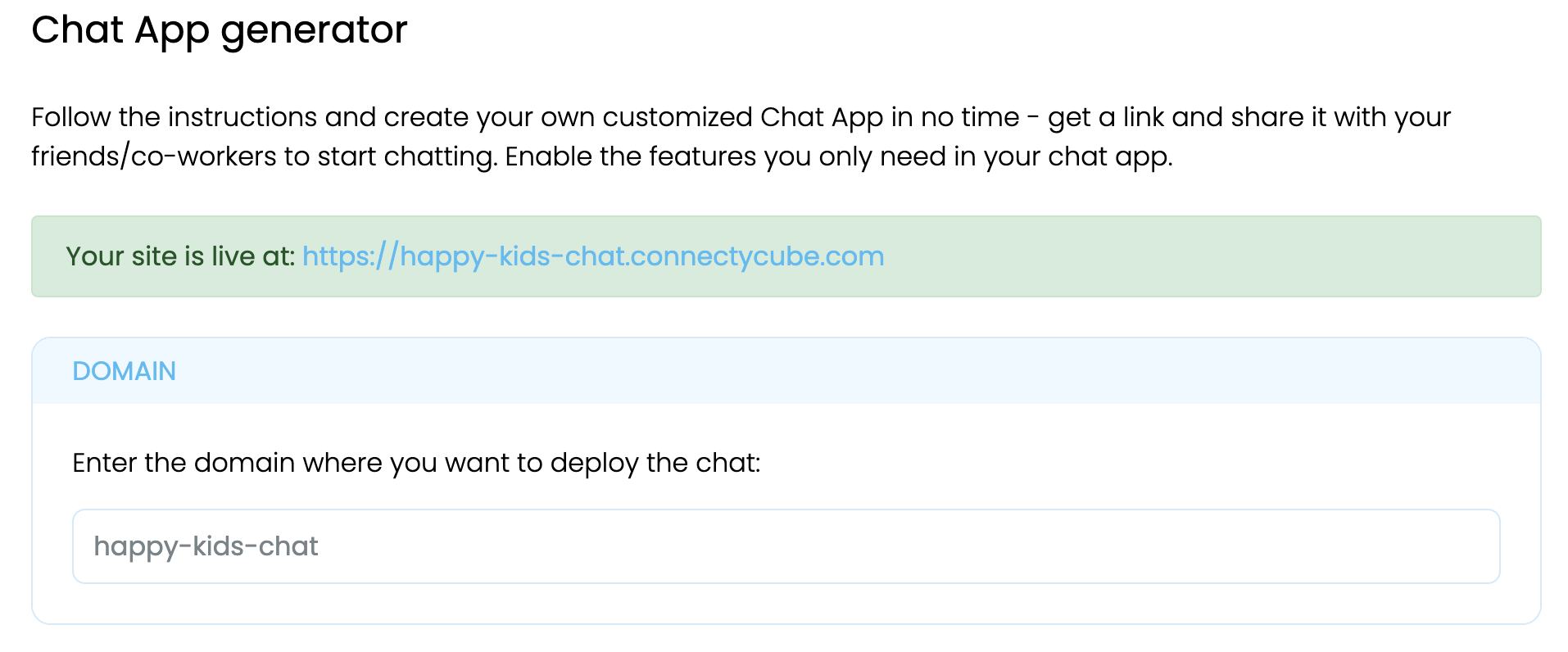
Follow the link you received and here is your new chat ready. Find people you shared link with and happy chatting!
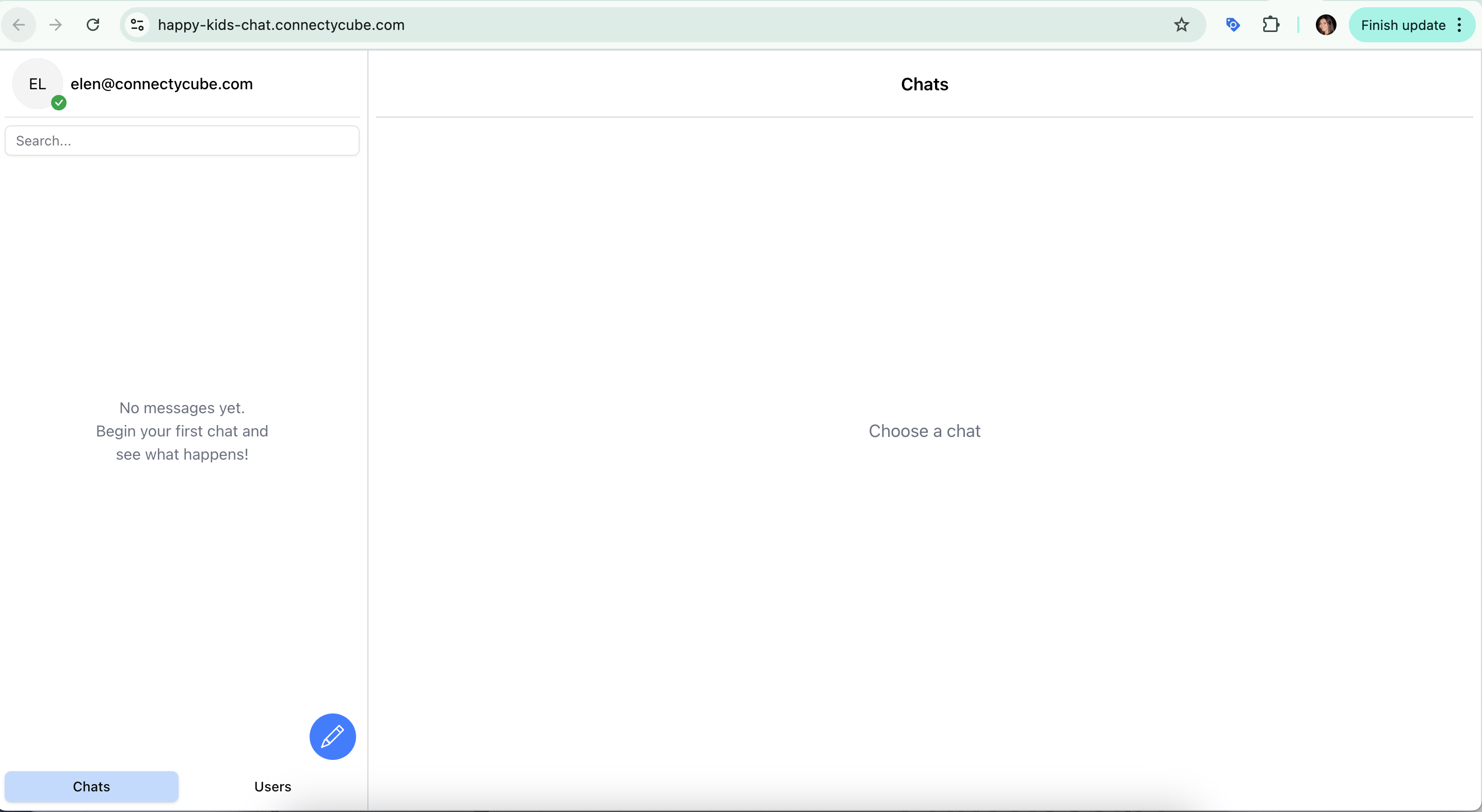
What you get with a Chat App Builder
The Chat App Builder gives you several key advantages:
You don’t need to write a single line of code – everything is generated for you automatically and fully hosted on our side.
You can customize the app by choosing only the features you want, and once it’s created, you immediately get a link you can share with anyone.
The interface is production-ready out of the box, with clean UI and smooth UX.
And behind the scenes, your chat app runs on ConnectyCube’s powerful Chat, Calls, Notifications, and Moderation APIs.
Try it to see it in action
If you’re curious to see how the Chat App Builder works or think it could be useful for your project, just head to your ConnectyCube Admin Panel, open your app, and generate your own chat link. It only takes a moment and you’ll instantly see your chat app live in action.
If you’re not a ConnectyCube user yet, simply sign up – it takes just a minute.
—
Join the ConnectyCube Discord сommunity for quick answers and expert tips